
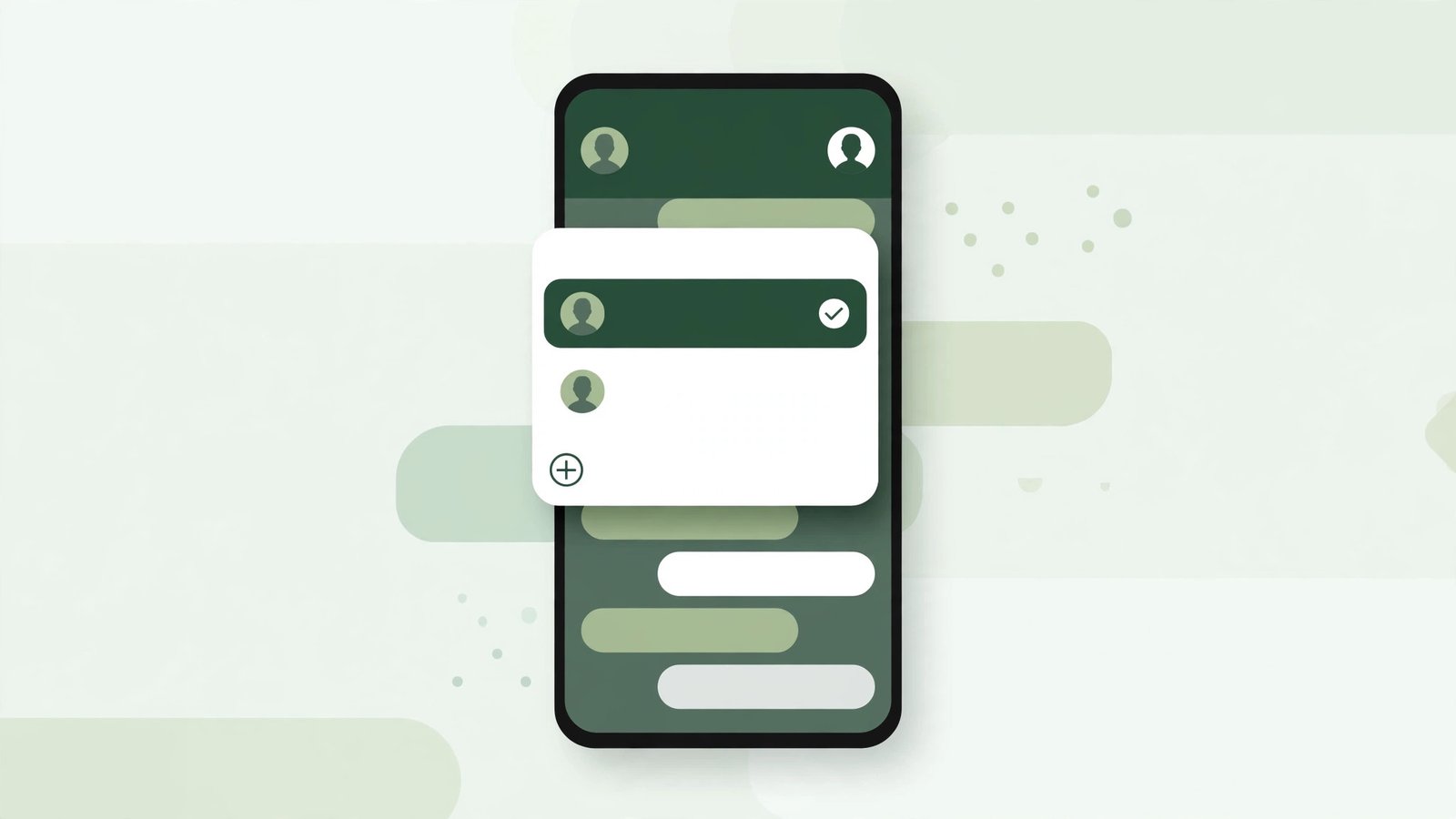
For a long time, running two WhatsApp accounts on one phone meant carrying a second handset, or installing a modified version of WhatsApp and hoping the account would not get banned. Neither option was good. The two-phone habit is expensive and irritating in equal measure, and the modified apps were always a risk that sensible people should not have had to take.
That problem is now solved properly. WhatsApp has a built-in feature that keeps two accounts signed in on the same phone, inside the official app, and it works on Android and, since its rollout during 2026, on iPhone as well. Alongside it, there are two other legitimate methods: the app-cloning tools that many Android manufacturers build into their phones, and the simple combination of WhatsApp and WhatsApp Business.
This guide explains all three methods with exact steps, what stays separate between the two accounts, the limits that most short guides leave out, and the one method I recommend for most people.
Three ways to run two WhatsApp accounts on one phone
Every method in this guide is official or manufacturer-supported. None of them needs a rooted phone, a patched app, or anything that puts the account at risk.
| Method | Works on | Second number needed | Cost | Best for |
|---|---|---|---|---|
| Built-in account switcher | Android and iPhone | Yes | Free | Most people |
| Manufacturer app cloning (Dual Messenger, Dual Apps, App Cloner) | Many Android phones (Samsung, Xiaomi, Oppo, OnePlus, Vivo) | Yes | Free | Phones where the built-in option has not appeared |
| WhatsApp + WhatsApp Business | Android and iPhone | Yes | Free | Sellers and anyone who wants business tools on the second account |
One requirement runs through all three: each WhatsApp account needs its own phone number. There is no method, official or otherwise, that puts two accounts on a single number. The second number can come from a physical SIM, an eSIM, or a second line you already have access to for the verification code.
Method one: add a second account inside WhatsApp itself
This is the method WhatsApp designed for the job, and it is the one to try first. Both accounts live in the same app. You switch between them with a couple of taps, and each account keeps its own chats, notifications, profile and privacy settings.
On Android
- Open WhatsApp and tap the three-dot menu, then Settings.
- Tap the small downward arrow next to your name and profile photo.
- Tap Add account.
- Tap Agree and continue, enter the second phone number, and tap Next.
- Enter the six-digit verification code sent to that number.
- Set the name and profile photo for the second account, or skip and do it later.
To switch after setup, open the three-dot menu and tap Switch accounts, then choose the account you want. The account you are not using stays signed in and still receives message and call notifications.
On iPhone
- Update WhatsApp from the App Store first, because the feature arrived during 2026 and older versions do not show it.
- Open WhatsApp and go to Settings.
- Tap your profile at the top, then tap Add account (on some versions it sits under Account).
- Enter the second number and verify it with the code, exactly as you did for your first account. On iPhone there is also an option to scan a QR code to bring in an account that already exists on another device.
- To switch later, open the same profile menu and tap the other account. Pressing and holding the You tab also opens the switcher on recent versions.
If the Add account option does not appear, the phone is almost certainly running an older WhatsApp version, or the rollout has not reached that device yet. Update the app, restart the phone, and check again in a few days. This is a staged rollout, so two phones with the same app version can still behave differently for a short while.
What actually stays separate between the two accounts
People usually ask this before they ask anything else, and the answer is reassuring: almost everything that matters stays separate.
- Chats and call history. Each account has its own list. Nothing mixes.
- Notifications. Both accounts receive notifications while signed in. Tapping a notification from the inactive account switches you to it, which is the behaviour most people want.
- Profile and privacy. Each account has its own photo, About line, last-seen settings, and blocked list.
- Backups. On Android, each account backs up under its own number to Google Drive. On iPhone, each account uses its own iCloud backup path. Keeping the numbers straight matters when you change phones later.
One detail deserves attention. If you remove an account from your main phone, the computers and tablets linked to that account are signed out after 14 days. Back up the chats first if that account holds anything you need to keep.
Method two: let your phone clone the app
Before WhatsApp built the switcher, Android manufacturers solved this problem themselves, and their tools still exist. Cloning creates a second, independent copy of WhatsApp on the same phone, and you register the second number in the copy. The two apps sit side by side in the app drawer, usually with a small badge on the cloned one.
- Samsung: Settings, then Advanced features, then Dual Messenger. Turn on the toggle next to WhatsApp and confirm the installation.
- Xiaomi, Redmi and Poco: Settings, then Apps, then Dual apps. Turn on WhatsApp.
- Oppo, Realme and OnePlus: Settings, then Apps, then App Cloner (labelled App Clone on some models). Select WhatsApp and create the clone.
- Vivo and iQOO: Settings, then Apps, then App Clone. Enable it for WhatsApp.
Phones that run near-stock Android, such as Google Pixel and Motorola models, do not include a cloning tool. On those devices, use method one or method three instead.
Two honest drawbacks. First, the clone is a complete second copy of the app and its data, so it takes roughly double the storage. If storage is already tight, that is a real cost, and it is worth reading my guide to freeing up Android storage without deleting your photos before you start. Second, the cloned copy is a separate app in every respect, which some people find less tidy than one app with a switcher. It works well, but method one is cleaner where it is available.
Method three: WhatsApp for personal, WhatsApp Business for work
The oldest legitimate method, and for anyone who sells anything, still the best one. WhatsApp Business is a separate official app. Install it alongside the ordinary app, register the second number in it, and the two accounts never touch each other at all. There is nothing to switch, because each account has its own icon, its own notifications, and its own chat list.

The reason to prefer it for a work number is the business toolset that the regular app does not have:
- A business profile with opening hours, address, email and website.
- A product catalogue customers can browse inside the chat.
- Quick replies for the questions you answer twenty times a week.
- Labels to organise customers, for example new enquiry, order placed, payment pending.
- Greeting and away messages that reply automatically outside your working hours.
Setting it up takes about ten minutes, and I have written the full process separately in my guide to using WhatsApp Business for a small business, including the catalogue and quick-reply setup. If the second number exists mainly for customers, that guide plus this method is the combination I would choose.
The one limitation is presentation. The second account is visibly a business account, with a business profile and business features. For a shop, a service, or a freelance practice, that is an advantage. For a purely personal second number, it can feel heavier than necessary, and method one fits better.
Where the second number comes from
The setup itself is easy. For most people, the real question is where the second number comes from, because the account is only as reliable as the number behind it.
- A second physical SIM. The straightforward option on a dual-SIM phone. A low-cost prepaid SIM that you keep active is enough; the account does not care which SIM carries your mobile data.
- An eSIM. On phones that support it, an eSIM is the cleanest answer. There is no tray to open and no second card to lose, and the number can be your existing work line moved over from an old phone. Most flagship phones from the last few years, and a growing number of mid-range models, support eSIM.
- An older number you already own. A number sitting in a drawer phone still works, provided the SIM is active and can receive the verification code. Keep it topped up or on the cheapest available plan, because a deactivated number eventually gets recycled by the network and issued to someone else, and at that point the account attached to it is at risk.
- Internet and app-based numbers. Treat these with caution. WhatsApp refuses many virtual and VoIP numbers during registration, and numbers supplied by free texting apps are frequently recycled between users. An account built on one can work for a while and then fail at the worst possible moment, usually a phone change. For an account that matters, use a number that a mobile network issued to you.
Using both accounts on a computer
Each account links to WhatsApp Web and the desktop apps independently, which creates one small complication: a single browser signed in to WhatsApp Web shows one account at a time.
The practical workarounds are simple. Keep the personal account in your main browser and the work account in a second browser, or in a separate browser profile in Chrome or Edge. Each profile keeps its own signed-in session, so both stay open side by side. The Windows and Mac desktop apps hold one account each, so most people pair the desktop app for one account with WhatsApp Web for the other. It is not elegant, but it is reliable, and after the first setup you will not think about it again.
The limits nobody mentions before you start
Short guides present this as a five-minute setup with no catches. The setup is genuinely quick, but there are limits worth knowing before you reorganise your messaging around two accounts.
Two is the maximum inside the app. The built-in switcher holds two accounts, not three or four. Combining methods, for example the switcher plus WhatsApp Business, can stretch the total further, but each additional account adds notification noise and battery use, and most people find two is the point where the benefit stops growing.
The second number has to be reachable. Verification requires receiving an SMS code or an automated call on that number. A number on an eSIM is the cleanest solution on a single-SIM phone. A number belonging to a family member is a poor choice, because every future re-verification, phone change, or security check depends on access to their handset.
Notifications arrive for both accounts. This is the point of the feature, but it also means a busy work account will interrupt your evening through the personal one. Both accounts allow separate notification settings, and setting a quieter tone, or muting notifications per chat, on the work account is worth doing on day one.
Each account ages independently. Privacy settings, two-step verification PINs, and backups are per account. Set the two-step verification PIN on the second account as well. It is the setting people most often forget, and the second account is usually the one tied to money or customers.
A necessary warning about clone apps and modified WhatsApp versions
Search results for this topic still promote modified WhatsApp versions with names like GB WhatsApp and WhatsApp Plus, and third-party cloning apps that promise three or four accounts. I do not recommend any of them, and the reasons are practical rather than preachy.
WhatsApp actively bans accounts found using modified versions, sometimes temporarily and sometimes permanently, and the ban attaches to the phone number. Losing a number that customers use to reach you is a serious problem for a small business. Modified apps also sit outside the Play Store and the App Store, so nobody independent has reviewed what they do with your messages, and end-to-end encryption claims from an unofficial developer cannot be verified. The official methods in this guide now cover every legitimate case, which removes the last reasonable argument for the modified apps.
Third-party cloning apps from the Play Store are a softer version of the same trade. The reputable ones work, but they add advertising, ask for wide permissions, and duplicate your data into a container you do not control. On a phone whose manufacturer provides cloning, use the manufacturer’s tool. On a phone without one, use method one or method three.
If something goes wrong during setup
Three problems account for nearly every failed attempt I hear about.
The verification code never arrives. Check that the number was entered in full international format, with the country code and no leading zero. Request the voice call option if SMS fails twice. Then wait for the countdown timer before requesting another code, because repeated requests extend the lockout.
The second account shows no chats. That is expected behaviour. A second account starts empty on this phone, even if that number was used on WhatsApp before, unless you restore its backup during setup. Chat history does not transfer between accounts, and there is no merge function. WhatsApp treats them as two different people, because as far as the service is concerned, they are.
Switching feels slow, or notifications from the inactive account stop. On Android, battery-saving features on some brands put the inactive account’s background activity to sleep. Exempt WhatsApp from battery optimisation in the phone settings if the inactive account goes quiet for long stretches.
Which method I would choose
For a personal second number, use the built-in switcher. It is the method WhatsApp maintains, it keeps everything inside one app, and it asks for nothing except a second number. On any Android phone or iPhone bought in the last several years, it is the right default.
For a work or business number, use WhatsApp Business as the second account. The catalogue, labels and quick replies save real time every week, and keeping customers entirely out of your personal chat list is worth more than the small convenience of a switcher. This is the arrangement I recommend to every small business owner who asks.
Use manufacturer cloning only when the built-in switcher has not reached your phone and you do not want the Business app. It is a sound tool, simply no longer the first choice.
Whichever method you pick, finish the job properly: set a profile photo and two-step verification PIN on the second account, confirm its backup is running, and send yourself a test message from the first account. Five minutes of setup now prevents the particular frustration of discovering a silent second account on the day an important message was sitting in it.