
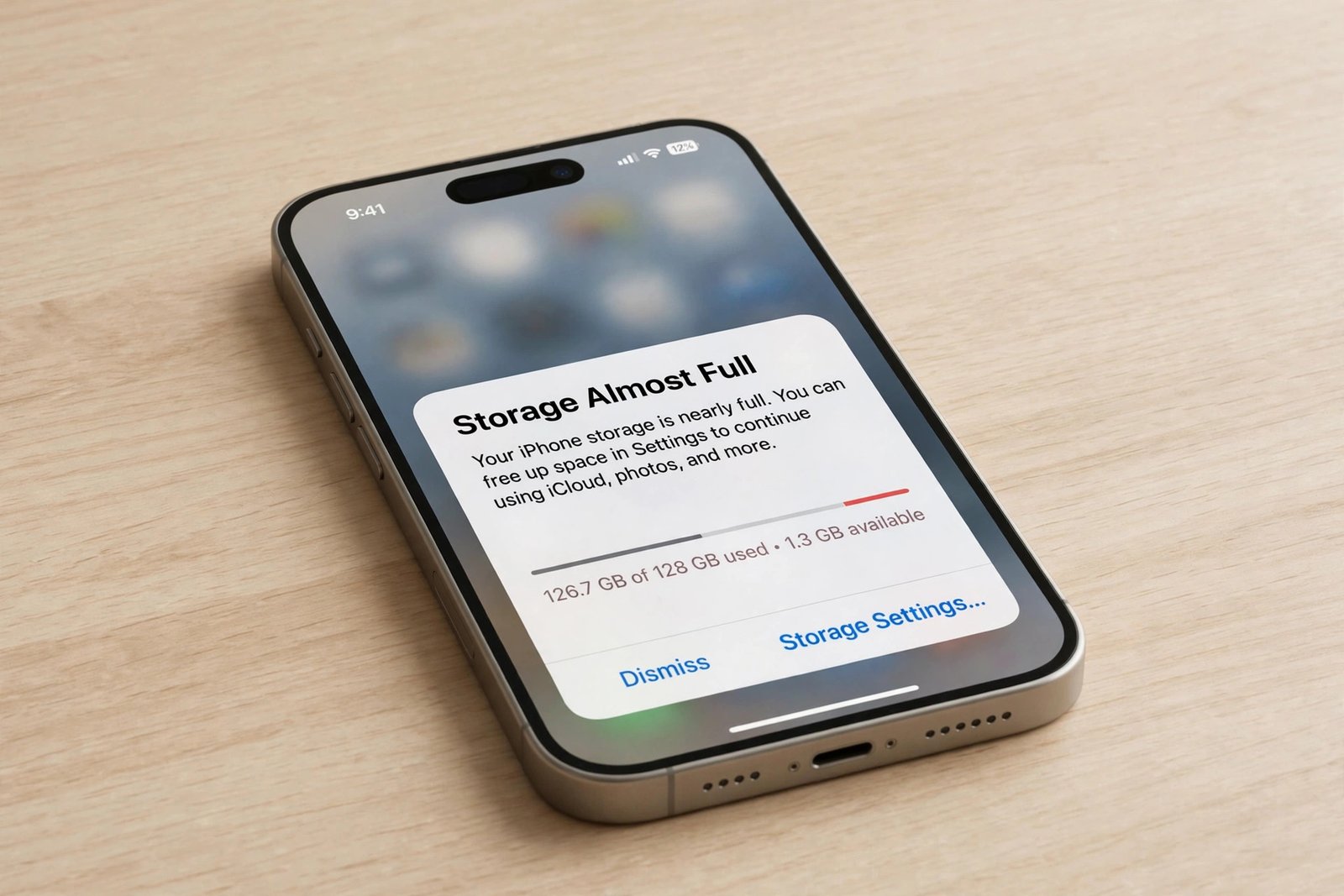
The warning always arrives at the worst moment. You are trying to take a photo, or install an update, or download one more app, and the iPhone tells you it is almost full. The fix is rarely one big delete. It is a short list of moves, done in the right order, starting with finding out what is actually taking the space.
You cannot add storage to an iPhone, because the capacity is fixed when you buy it. What you can do is free the space that is already there: offload the apps you rarely open, let iCloud hold your full-size photos, empty Recently Deleted, and clear the downloads and attachments you forgot about. That is how to get more iPhone storage in practice, and this guide works through nine fixes in the order I would try them, with exact settings paths, real prices where money is involved, and the two popular shortcuts I would skip.
Your iPhone has two kinds of storage, and most guides mix them up
Before touching anything, it helps to know which storage is actually full, because the iPhone has two of them and they are fixed in completely different ways.
The first is the storage built into the phone: 64 GB, 128 GB, 256 GB, whatever you picked when you bought it. It holds your apps, your photos, your messages, your downloads and the operating system itself. It is fixed. There is no memory card slot and no way to add more of it later.
The second is iCloud storage: space on Apple’s servers, tied to your Apple Account. Every account gets 5 GB free. It holds your iCloud Photos, your device backups, your iCloud Drive files and your messages if you sync them. It is separate from the phone, and it can be enlarged by paying for iCloud+.
The two warnings look alike and people mix them up constantly. “Storage Almost Full” means the phone itself is running out of room, and this guide is the fix. “iCloud Storage Full” means the 5 GB on Apple’s servers is used up, and the fix is a different job, covered in my guide to freeing up iCloud storage without paying.
One confusion causes more wasted evenings than any other, so I will say it plainly here and again later: buying iCloud+ does not add a single gigabyte to your phone. It buys cloud space. It only helps the phone when it is paired with a setting that moves data off the phone, like Optimize iPhone Storage, which I cover below. If you buy a plan and change nothing else, the phone stays exactly as full as it was. Keep that distinction in mind and the rest of this guide makes sense: how to get more iPhone storage is a question about freeing space on the device, not about buying cloud space.
First, see what is actually filling your phone

Guessing is how people delete the wrong things. The iPhone will tell you exactly where the space went, and the whole cleanup follows from that one screen.
Open Settings, tap General, then tap iPhone Storage. Give it a few seconds: the list of apps takes a moment to load, and the coloured bar at the top needs a second to finish calculating. Apple splits the bar into nine categories: Apps, Photos, Media, Mail, Apple Books, Messages, iCloud Drive, Other, and System. Read the bar first, then scroll down to the app list, which is sorted with the largest app at the top.
Two things on this screen matter more than the rest. The first is the recommendations at the top, under headings like “Review Large Videos” or “Offload Unused Apps”. These are Apple’s own suggestions for your phone specifically, not generic tips. Tap Show All to see all of them, read each one, and tap Enable on the ones that fit. The second is what you see when you tap any single app: two numbers, the size of the app itself and the size of its documents and data. That split decides which action will actually help. If the app is 400 MB and its data is 20 MB, offloading it frees almost everything. If the app is 80 MB and its data is 2 GB, offloading barely moves the needle, and the fix is inside the app, in its downloads or saved files.
One honest note about the numbers: Apple says cached and temporary data might not count in the usage shown, so treat the figures as a useful guide rather than a complete accounting. The rule for the rest of this guide stays the same either way. Start with the largest category on the bar. Deleting a 90 MB app will not fix a 70 GB photo library.
How to free up space on iPhone: start with the apps
Apps are the fastest win for most people, because the fix takes seconds per app and nothing you care about has to be deleted. The iPhone gives you two ways to remove an app, and they do very different things.
| Action | What happens to the app | What happens to your data | Best for |
|---|---|---|---|
| Offload App | Removed from the phone; the icon stays on the Home Screen with a small cloud symbol, and tapping it reinstalls the app | Kept | A large app you use rarely, when its data is small |
| Delete App | Removed from the phone, icon gone | Removed with it | An app you are finished with for good |
Offloading is the move I would try first. In the iPhone Storage list, tap the app, then tap Offload App and confirm. The app itself is gone, your documents and data stay, and reinstalling later picks up where you left off. It is the right choice for the games you play twice a year, the travel apps for trips already taken, and the shopping apps you open at sale time.
The iPhone can also do this on its own. Turn on Offload Unused Apps in Settings, then Apps, then App Store. On older versions of iOS the App Store row sits directly in Settings rather than under Apps. Once it is on, the phone removes apps you have not opened in a while whenever storage runs low, and keeps their data. You can also switch it on from the recommendation at the top of the iPhone Storage screen. I would turn it on and leave it on. It is the closest thing to the phone cleaning up after itself.
Deleting is for apps you are finished with. It removes the app and its related data together, so use it only when you are sure. Before deleting anything, check whether the app holds something that lives only on the phone: a game that never backed up its progress, a notes app that never synced, a scanner app full of unsaved documents. If the data matters and it is not backed up anywhere, back it up first or offload instead.
The fastest version of this is a ten-minute audit. Open the iPhone Storage list, look at the ten largest apps, and ask one question about each: have I opened this in the last month? If the answer is no, offload it. If the answer is that you will never open it again, delete it. Most people find two or three gigabytes in this step alone, and it costs nothing.
Photos: the biggest win, without deleting a memory

For most people with a full iPhone, Photos is the largest category on the bar, sometimes by a wide margin. The instinct is to start deleting pictures. Do not start there. There are two settings that free far more space than deleting, and neither one throws a memory away.
The first is Optimize iPhone Storage. Open Settings, tap your name at the top, tap iCloud, tap Photos, and choose Optimize iPhone Storage. From then on the phone keeps smaller versions of your photos and videos on the device, and the full-resolution originals live in iCloud. You still see your whole library, you still open any photo, and the phone carries a fraction of the weight. Two things to know before switching it on. It needs enough iCloud space to hold the originals, and the free 5 GB tier fills fast, so if your iCloud account is already full, sort that out first. And the upload takes time: leave the phone on Wi-Fi and charging, and let it work through the library overnight rather than expecting the space back in five minutes.
The second is Recently Deleted, and it is the step almost everyone misses. When you delete a photo on an iPhone, it is not gone. It sits in Recently Deleted for 30 days, and it keeps taking up space the whole time. The same applies to deleted files and messages, which wait up to 30 days too. So after any cleanup, open Photos, go to Albums, open Recently Deleted, check that nothing in there is something you want to keep, and delete all of it. Until you do, the space you just “freed” is not freed at all.
Once those two are done, look at the videos. A minute of 4K video can run to several hundred megabytes, so a handful of long clips can outweigh hundreds of photos. The recommendation at the top of the iPhone Storage screen will point you at the largest ones. Keep the ones that matter. The accidental recordings, the ten takes of the same moment, the screen recordings you never watched again: those can go, and Recently Deleted needs emptying again afterwards.
If the library is genuinely too big for the phone even after all of that, move the originals somewhere else before deleting local copies. A cable and a computer is the simplest route: import the photos and videos to a Mac or a PC, check that they open there, and only then delete them from the phone. A USB drive works the same way, and I cover both in the section on moving files off the phone below. The order matters. Copy first, check the copy, then delete. Never delete the only copy of a photo you care about.
Messages, downloads and offline media: the quiet eaters
Photos and apps get the blame, but a surprising amount of space hides in three places people rarely check: message attachments, downloads, and media saved for offline use.
Messages is the first place to look. Every photo and video anyone ever sent you lives in your message threads, and the big ones add up. The iPhone Storage screen will offer to review large attachments if Messages is a meaningful part of your usage. Tap the recommendation and delete the ones you do not need, starting with the largest. You can also stop the pile from growing: in Settings, then Messages, then Keep Messages, choose 30 days or 1 year instead of Forever, and old conversations delete themselves on schedule. Before switching that on, save anything you want to keep, because the deletion is automatic once the time is up.
WhatsApp deserves its own check, because it stores every photo, video and voice note from every chat on the phone. Open WhatsApp, go to Settings, then Storage and Data, then Manage Storage, and you will see the largest files and the chats that sent the most. Delete the forwards and the videos you have already watched. One thing people miss: if you run two WhatsApp accounts on one phone, both accounts store their media separately, so the same cleanup is needed in both.
Then there are the downloads. Safari saves files to the Downloads folder in the Files app, and they sit there until you remove them. Music apps keep downloaded songs, video apps keep downloaded shows, and podcast apps keep episodes long after you listened to them. None of this is hard to clear, but it is easy to forget, because each app hides its downloads in a different place. Open each media app you use, find its downloads or offline section, and remove what you can stream again whenever you want it. Mail is worth a glance too: if the Mail category on the storage bar is large, it is usually attachments in old messages, and removing the account and adding it again clears the local cache, though that is a step to take only if you know your password and your mail is stored on the server.
Move the big stuff off the phone: computer or USB drive
Some files are simply too big to keep on the phone and too important to delete. The answer is not a setting. It is moving them somewhere else.
A computer is the simplest destination. Connect the phone with a cable, import your photos and videos to a Mac or a PC, and check that they open there before deleting anything from the phone. The Photos app on a Mac and the Photos app on Windows both handle the import, and a Mac can also use the Finder. Once the import is verified, delete the copies from the phone and empty Recently Deleted, or the space will not come back.
A USB drive is the same idea without a computer. iPhone 15 and later models have a USB-C port, so any USB-C flash drive works; older iPhones need a Lightning flash drive. Plug it in, open the Files app, and copy the big videos and files across. Check that the copy plays, then delete the originals from the phone. A 128 GB drive costs little and holds more video than most people will ever shoot, and it has one advantage over the cloud: it works without an internet connection and costs nothing per month.
A cloud service is the third option. Google Photos and Google Drive both back up an iPhone photo library, and the free tiers give you a place to start. The trade is the same as with iCloud: you are renting space by the month, and the free tier runs out. My iCloud guide covers moving photos off iCloud in detail, and the same thinking applies here: pick one home for the originals, make sure the copy is complete, and only then free the phone.
Whatever destination you choose, the rule is the same and it is worth repeating: copy first, check the copy, then delete. The only unrecoverable mistake in this whole guide is deleting a file whose only copy was on the phone.
How to clear iPhone storage the system holds
Sooner or later you will look at the storage bar and find a large block labelled System Data, or System and Other, and wonder how to clear it. The honest answer is that you cannot clear it directly. Apple says the operating system manages cached and temporary files itself, and there is no button that empties System Data. Anyone who tells you otherwise is selling something.
That does not mean you are stuck. Three things genuinely help. The first is a restart. It sounds too simple, but a restart clears temporary files that the system had not got around to removing, and on a phone that has not been restarted in weeks it can free a visible amount. The second is updating iOS. An update can clear stale caches left behind by older versions, and Apple notes that the device can temporarily remove app data to make room for an update without deleting your personal information. The third is Safari: in Settings, then Apps, then Safari, tap Clear History and Website Data. That removes Safari’s caches and cookies. It also signs you out of websites, so keep your passwords handy before tapping it.
There is a fourth move for stubborn cases: offload and reinstall the app whose data has grown out of control. Offloading keeps the documents and data, so that alone does not help here. Deleting and reinstalling removes the app and its cached data together, which can free a lot when an app has been hoarding files. Only do this for apps whose data is backed up or synced somewhere, like a streaming app or a social app, never for an app that holds the only copy of your work.
If System Data is still the largest block on the bar after everything else in this guide, stop chasing it and contact Apple Support. A phone that stays full when its apps, photos and messages have all been cleaned is not a problem Settings can solve, and that pattern is the one Apple Support is there for.
Cleaner apps and chip upgrades: two things I would skip
Two shortcuts come up in almost every conversation about full iPhones. I would skip both.
Cleaner apps promise to find junk and free gigabytes with one tap. On an iPhone they cannot deliver what they promise, because iOS does not let a third-party app reach into the system or into other apps to clean their files. At best, a cleaner app finds duplicate photos, and the Photos app already does that itself: open Albums and look for Duplicates. Paying a monthly subscription for that is money spent on a feature the phone already has.
The second shortcut is a chip replacement, sometimes sold as a “storage upgrade”. A repair shop desolders the storage chip inside the phone and fits a larger one. Apple does not offer this and does not support it. It is micro-soldering work: one mistake can damage the board or wipe the data, and it can affect warranty coverage and future service. It is not worth the risk on a phone you rely on every day, especially when the fixes in this guide cost nothing and the honest alternative is a phone with more built-in storage next time.
When freeing space is not enough
There is a point where cleaning stops being the answer. If you have worked through every fix above and the phone is still full, the problem is not clutter. The capacity is too small for how you use the phone, and there are only two honest moves left.
The first is iCloud+, which buys cloud space, not phone space. The prices, from Apple’s own pricing page, are $0.99 a month for 50 GB, $2.99 for 200 GB, $9.99 for 2 TB, $29.99 for 6 TB and $59.99 for 12 TB, billed monthly with no annual discount. Some US states add sales tax on top. The plans also include Private Relay and Hide My Email, and the larger plans cover HomeKit Secure Video cameras. What iCloud+ does for a full phone is narrow but real: with Optimize iPhone Storage switched on, your full-size photos and videos live in the cloud and the phone carries small versions, which is often the single biggest space saving available. Without that setting, the plan changes nothing on the phone at all.
Which plan, if you go this way? The 50 GB plan suits a single iPhone with a small library. The 200 GB plan at $2.99 is the one most photo-heavy users and small families land on, and it shares with up to five family members. The 2 TB plan is for large libraries and families with several devices. I have written the full case for and against paying for iCloud+ in the iCloud guide, including how to avoid paying at all, and it is worth reading before you subscribe, because the free tier plus a proper cleanup is enough for many people.
The second move is the one nobody wants to hear: buy more built-in storage next time. There is no way to add capacity to the iPhone you already own. When you choose the next one, look at the Used figure on the iPhone Storage screen and add room for growth. If you are using 110 GB of a 128 GB phone today, 256 GB is the sensible minimum, because photos and apps only get bigger.
How to get more iPhone storage: the 20-minute cleanup
If you do nothing else from this guide, do this list, in this order. The first six moves take about twenty minutes together. The last three are only needed if the phone is still tight afterwards.
| # | Move | What it frees | Time |
|---|---|---|---|
| 1 | Offload the apps you rarely open | The app itself; your data stays | 5 min |
| 2 | Delete the apps you are finished with | The app and its data | 3 min |
| 3 | Turn on Optimize iPhone Storage | Most of the photo library’s local size | 2 min to switch on, upload overnight |
| 4 | Empty Recently Deleted in Photos, Files and Messages | Everything deleted in the last 30 days | 2 min |
| 5 | Delete large videos and message attachments | Hundreds of MB to several GB | 5 min |
| 6 | Remove downloads and offline media | Music, shows, podcasts, files | 5 min |
| 7 | Move big files to a computer or USB drive | As much as you move | 10 min and up |
| 8 | Restart the phone and update iOS | Stale caches in System Data | 10 min |
| 9 | Buy iCloud+ only if the cloud is the bottleneck | Cloud space, not phone space | 2 min |
Frequently asked questions
No. The storage capacity is fixed when the phone is made, and there is no memory card slot and no official upgrade. iCloud+ buys space on Apple’s servers, not space on the phone, so it only helps when paired with a setting like Optimize iPhone Storage that moves data off the device.
Turn on Optimize iPhone Storage so the phone keeps small versions and iCloud holds the originals, empty Recently Deleted, and move the large videos to a computer or a USB drive. Those three moves free the most space without deleting a single photo.
No. Deleted photos sit in Recently Deleted for 30 days and keep taking up space until that period ends or you delete them from there. The same applies to deleted files and messages, which wait up to 30 days.
System Data is the operating system’s own files: caches, logs, Siri voices and temporary data. You cannot delete it directly, because iOS manages those files itself. A restart and an iOS update can shrink it, and if it stays very large after everything else is cleaned, Apple Support is the next step.
No. Offloading removes the app but keeps its documents and data, and tapping the icon reinstalls it with your data intact. Deleting removes the app and its data together, so use Delete only for apps you are finished with.
Usually one of three reasons: the deleted items are still in Recently Deleted and have not been emptied, System Data has grown large, or the warning was about iCloud storage rather than the phone itself. Check the iPhone Storage screen first, and empty Recently Deleted before anything else.
What I would do
If Photos is the biggest block on your bar, do this tonight: turn on Optimize iPhone Storage, empty Recently Deleted, and move the long videos to a computer or a USB drive. That combination fixes most full iPhones, and it costs nothing. For most people, that is the whole answer to how to get more iPhone storage.
If apps dominate instead, offload first and delete second, starting with the ten largest. If System Data is the biggest block, restart, update iOS, and stop chasing it. A phone that stays full after a proper cleanup is telling you its capacity is too small, and the money is better saved toward a bigger phone than spent on cleaner apps or chip surgery.
I would not buy iCloud+ until the cleanup is done, because many people find they do not need it once the phone is tidy. Buy it when the cloud, not the phone, is the bottleneck: when your photo library genuinely needs more room than the free 5 GB, or when the family shares one plan. And when the next phone comes around, buy more storage than you think you need. The price difference once is cheaper than a monthly subscription forever, and it is the only storage upgrade that actually exists.
If the family has an Android phone with the same problem, the Android version of this cleanup follows the same order, with the right settings for that side.