
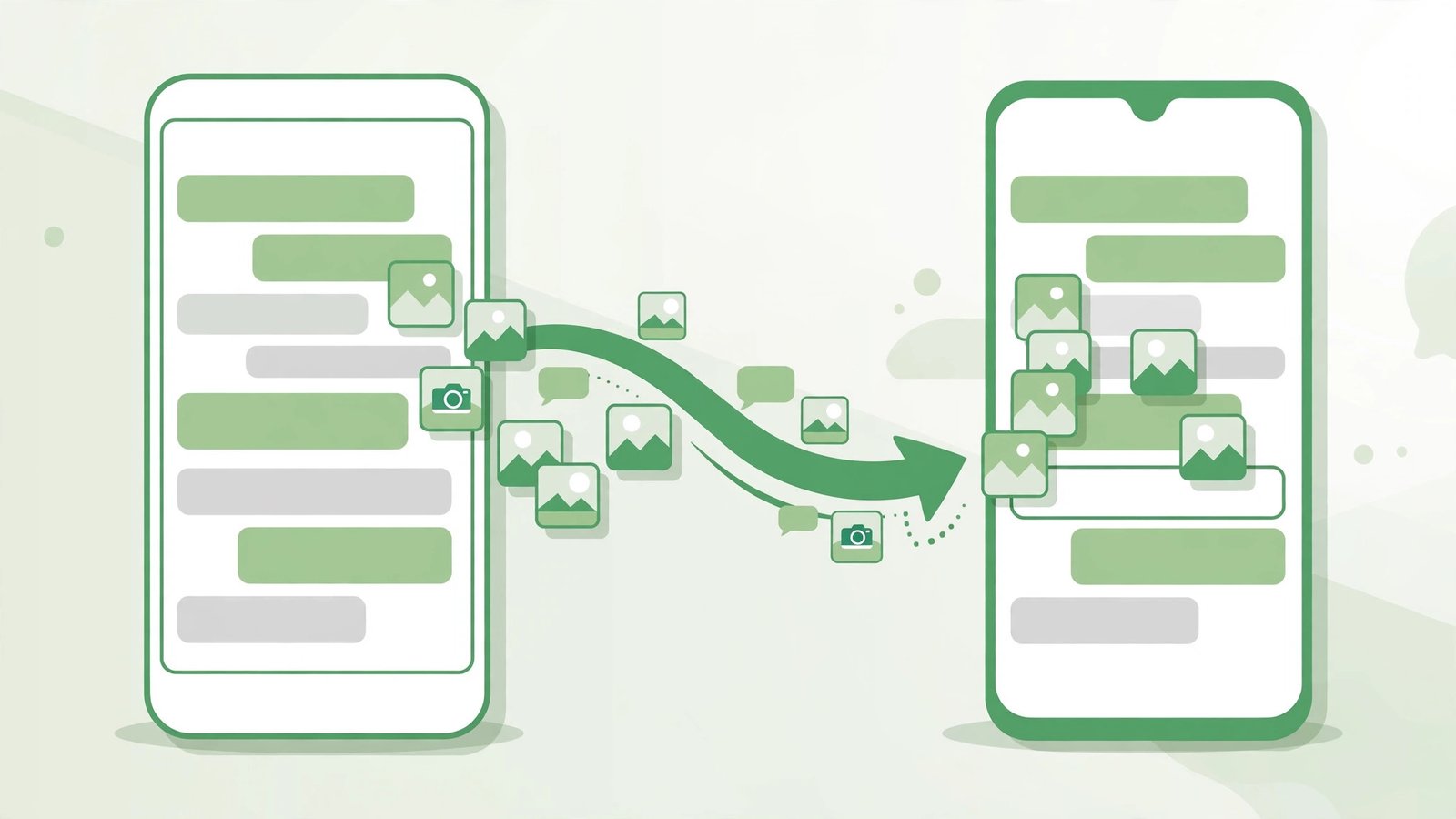
The new phone is rarely the stressful part. The stressful part is the moment in the shop, or at the kitchen table, when you look at the old phone and realise that years of conversations live on it: family groups, work threads, photos people sent that exist nowhere else, and the one chat with the address, the receipt, or the voice note you still need. People delay upgrading their phones for months over exactly this worry.
The worry is understandable, but the transfer itself is safer than its reputation. WhatsApp now offers a proper route for every direction: Android to Android, iPhone to iPhone, and both ways between them. The losses that still happen almost always come from the same few mistakes, such as wiping the old phone before checking the new one, or backing up to one cloud account and signing in with another. This guide walks through all four routes with exact steps, then covers the mistakes, because knowing them in advance is most of the protection.
Three rules before you touch anything
Whatever route you take, these three rules decide whether it ends well.
Rule one: the number stays the same. WhatsApp accounts are tied to a phone number, and every restore method in this guide assumes the new phone registers the same number. If you are also changing numbers, change the number inside WhatsApp on the old phone first (Settings, then tap your profile, then your number, then Change number). That moves the account, groups and history to the new number before the phone move begins.
Rule two: back up first, and confirm the backup finished. A backup that stopped at 90 percent three weeks ago is not a backup. Open the backup screen on the old phone, read the date and time of the last completed backup, and run a fresh one while the phone is charged and on Wi-Fi. If you use the end-to-end encrypted backup option, you will need its password or 64-digit key during the restore. Find it before you start, not after.
Rule three: the old phone stays untouched until the new one is verified. Install WhatsApp on the new phone, restore, and then open several chats, including an old group and a chat with photos, and confirm the history is really there. Only after that check should the old phone be reset, sold or handed down. This single habit prevents nearly every horror story attached to this process.
The four routes at a glance
| Your move | Best method | Needs | Watch out for |
|---|---|---|---|
| Android to Android | Chat transfer by QR code, or Google Drive backup | Both phones together, or the same Google account | Signing in with a different Google account |
| iPhone to iPhone | Chat transfer by QR code, or iCloud backup | Both phones together, or the same Apple ID | iCloud storage running out mid-backup |
| Android to iPhone | Move to iOS app during iPhone setup | A new or freshly reset iPhone | The iPhone must be at its setup stage |
| iPhone to Android | Move chats to Android, during Android setup | A cable, and a new or freshly reset Android phone | Skipping the WhatsApp option during setup |
Android to Android
You have two good options, and the newer one is the better one.
Option A: chat transfer by QR code. This moves your chats directly from phone to phone, with no cloud backup involved, and it is usually the fastest route for large histories.

- On the old phone, open WhatsApp, then Settings, then Chats, then Transfer chats, then Start.
- Install WhatsApp on the new phone and register the same number.
- When the new phone offers to transfer chat history, accept, and scan the QR code it shows using the old phone.
- Keep both phones near each other, unlocked and on the same Wi-Fi network until the progress bar completes.
Option B: Google Drive backup. This is the older route and still the right one if the old phone is being sent away before the new one arrives.
- On the old phone: Settings, then Chats, then Chat backup. Confirm the Google account shown is the one you will use on the new phone, choose whether to include videos (they make backups far larger), and tap Back up.
- On the new phone, sign in to that same Google account before opening WhatsApp.
- Install WhatsApp, verify the same number, and when it finds the backup, tap Restore. Media finishes downloading in the background after the messages appear.
The mistake that breaks this route is a mismatched Google account. If WhatsApp on the new phone says no backup was found, a different account is almost always the reason.
iPhone to iPhone
The shape is the same, with Apple’s names on the doors.
Option A: chat transfer by QR code. On the old iPhone, open Settings inside WhatsApp, then Chats, then Transfer Chats to Another iPhone, then Start. Register the same number on the new iPhone, and scan the QR code it displays with the old phone. This route does not depend on iCloud space, which matters for the next paragraph.
Option B: iCloud backup. On the old iPhone: WhatsApp Settings, then Chats, then Chat Backup, then Back Up Now, with iCloud Drive turned on for WhatsApp in the iPhone’s own settings. On the new iPhone, sign in with the same Apple ID, install WhatsApp, verify the number, and tap Restore Chat History when offered.
The iPhone-specific trap is storage. The free iCloud tier is 5 GB, and a WhatsApp backup with years of media often exceeds it, so the backup silently fails or stays incomplete for months. Check the backup’s date and size on the old phone before you begin. If iCloud space is the problem, the QR transfer route avoids it entirely.
Android to iPhone
Crossing from Android to iPhone uses Apple’s Move to iOS app, and it has one strict condition: the iPhone must be new or freshly reset, sitting at its initial setup screens. If the iPhone has already been set up and used, this route requires resetting it, which is why most people should do the transfer during the unboxing, not after a weekend of setting things up.
- A Google Drive backup plays no part in this route. On the Android phone, install Move to iOS from the Play Store, and keep the phone charged and on Wi-Fi.
- Start setting up the iPhone. On the Apps and Data screen (labelled Transfer Your Apps and Data on newer versions), choose Move Data from Android.
- Open Move to iOS on the Android phone, follow the prompts, and enter the code shown on the iPhone.
- On the transfer selection screen, make sure WhatsApp is selected, then tap Start on the Android phone and wait for the preparation to finish.
- Tap Continue in Move to iOS and let the transfer complete.
- On the iPhone, install WhatsApp from the App Store, open it, and verify the same number. The transferred history is detected and imported, and your chats appear.
Two honest limits of this route. Call history and payment information do not transfer, and neither do some account extras such as channel history in full. Messages, groups and media do. The second limit is timing: because the iPhone must be at setup, there is no convenient way to redo this route later without a reset.
iPhone to Android
The reverse crossing is built into the Android setup itself, and again the timing condition applies: it works during the setup of a new or freshly reset Android phone, and it needs a cable (USB-C to USB-C, or Lightning to USB-C for older iPhones).
- On the iPhone, open WhatsApp, then Settings, then Chats, then Move Chats to Android, then Start. The iPhone prepares an export package.
- Begin setting up the Android phone. When it asks whether to copy apps and data, connect the cable and choose to copy from an iPhone.
- Follow the setup prompts, and make sure WhatsApp is selected when the phone lists what can be transferred. On Samsung phones this flow runs through Smart Switch; on Pixel and most other Android phones it runs through the standard setup screens.
- When setup finishes, open WhatsApp on the Android phone and verify the same number. The imported history is detected, and your chats, groups and media appear.
The same honest limits apply in this direction: call history and payment details stay behind. If no cable is available, the fallback is a third-party desktop tool, and I would treat that as a last resort rather than a plan, because your chat archive then passes through software neither WhatsApp nor the phone maker supervises.
What does not move, whichever route you take
Knowing this list in advance prevents the particular disappointment of discovering it afterwards.
- Call history does not transfer on the cross-platform routes (Android to iPhone, or iPhone to Android). On same-platform moves it generally comes across with the backup.
- Payment information and transaction history stay behind on every route.
- WhatsApp Channels updates and some status archives may not come across in full on cross-platform moves.
- A chat you deleted is gone from the backup as well. Backups hold what exists at backup time, which sounds obvious and still surprises people.
- If you run two WhatsApp accounts on one phone, each account transfers separately, under its own number and its own backup. Do the whole process twice, once per account, and do not assume the second account followed the first.
Two smaller points that catch people out. Photos and videos sent with the “view once” setting cannot be restored by any method, because they were designed to disappear. Messages in chats with disappearing messages turned on only survive for the period those chats keep them, and a backup does not extend that. And if you are an admin of a group, your admin role does travel with the account, so there is no need to hand it over before moving. The move changes the phone, not the account, and to everyone in your chats nothing visible happens at all. Nobody receives a notification that you changed handsets, which is exactly how it should be.
How long it takes, and how to make it quicker
The honest answer is that it depends almost entirely on how much WhatsApp history you have accumulated. A light user with a few hundred megabytes of chats can finish in ten or fifteen minutes. A heavy user with years of photos and videos, where the backup reads 8 or 12 GB, should expect the better part of an hour, and large iCloud or Google Drive restores can run longer because the media continues downloading in the background after the messages appear.
A few habits make a real difference to the time:
- Update WhatsApp on the old phone first. The chat transfer feature does not exist in old versions, and version mismatches are a quiet cause of failed QR pairings. Five minutes in the app store before you start is never wasted.
- Use a strong Wi-Fi network and keep both phones plugged in. Transfers throttle or pause when a phone decides it is saving battery, and a phone that dies at 80 percent restarts the process from the beginning on some routes.
- Keep both screens awake and the phones next to each other. The QR transfer routes move data over a local connection between the two phones, and distance or a sleeping screen interrupts them.
- Decide about videos before the backup, not during it. Videos are usually the largest part of a backup by a wide margin. If your videos are already saved elsewhere, excluding them can turn an hour into fifteen minutes. If they are not saved elsewhere, include them and accept the wait. Losing them to save time is a poor trade.
- Do not start the move on a deadline. The worst version of this job is the one done in a taxi on the way to sell the old phone. Give it an unhurried evening and it is a non-event.
When the transfer goes wrong
Four problems account for almost every failed transfer I hear about, and each has a known fix.
WhatsApp says no backup was found. On Android, the new phone is signed in to a different Google account than the one holding the backup. On iPhone, the Apple ID differs or iCloud Drive is off for WhatsApp. Check the account first, before reinstalling anything in a panic.
The restore offer never appears. The restore is offered once, during the first registration of the number on the new phone. If you tapped through it, skipped it, or registered and started chatting, the clean fix is to uninstall WhatsApp on the new phone, reinstall it, and verify the number again, this time accepting the restore. Any new chats created on the new phone in between will be lost, so do this before you start using the new phone seriously.
The backup gets stuck at the same percentage. This is nearly always space or connection: not enough room in Google Drive or iCloud, not enough free space on the phone itself (a restore needs working room, so a completely full new phone can fail), or an unstable Wi-Fi connection. Free up space, restart both phones, and try again on a stable network. Turning off “include videos” in the backup settings shrinks an Android backup dramatically if space is the choke point.
Two-step verification blocks the registration. If you set a two-step verification PIN, and you should, the new phone will ask for it during registration. That is the system working, not an error. This is also why the PIN and its recovery email deserve setting up properly in the first place, which I covered in my guide to setting up two-factor authentication. If you never set the recovery email and have forgotten the PIN, wait out the reset period on the old phone rather than guessing repeatedly.
A note for business users: a WhatsApp Business account transfers by the same methods, under its own number. After the move, check the catalogue and quick replies on the new phone, since those are the pieces a business notices first if anything is missing. My guide to WhatsApp Business for a small business covers the setup side of that account.
The order I would do it in
If I were handing someone a new phone tomorrow, this is the exact sequence I would follow. Charge both phones. On the old one, run a fresh backup and read its completion time with my own eyes, even if I plan to use the QR transfer, because the backup is the insurance policy. Then move, using the QR transfer for a same-platform switch and the setup-stage routes for a cross-platform one. Verify the same number, accept the restore, and open three chats: the family group, a work thread, and one old chat with photos. Only when all three look right does the old phone get reset.
The whole process usually takes between fifteen minutes and an hour, most of it waiting. It deserves that patience. The people who lose years of messages are almost never beaten by the technology. They are beaten by one skipped check, and now you know which checks they are.